MENU
MENU
Problem:
I have multiple graphics devices and Tecplot 360/FieldView is not using the correct one.
Solution:
Tecplot 360:
To specify the graphics device for Tecplot 360, you can do so at launch or in the tecplot.cfg file located in the Tecplot 360 installation folder.
- At launch, you can use
--gpu-number <integer>to choose the device number. GPU numbers range from 0 to<numdevices>-1. - In the tecplot.cfg, you can achieve the same if you use the following command:
$!Interface VulkanConfig { GpuNumber = <integer> }
From the Help>Tecplot 360 dropdown menu look for “Vulkan info” in the “Runtime environment” section for a list of available GPU’s from which to choose.
FieldView:
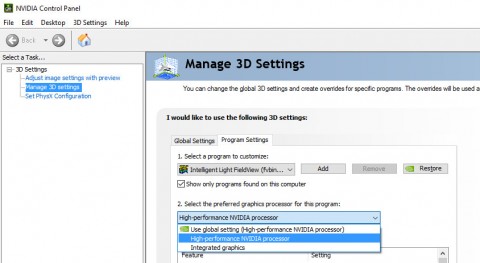
FieldView does not have a native way to select the graphics device on program launch. However, for NVIDIA graphics cards you can force this via the NVIDIA Control Panel. Inside the NVIDIA Control Panel, navigate to “Program Settings” inside of “Manage 3D Settings” to have FieldView (or XDBView) use the NVIDIA device. (You may need to make the entry for FieldView or XDBview yourself, depending on how recent a video driver you are using.)